
1. ifconfig
ifconfig (interface configurator) command is use to initialize an interface, assign IP Address to interface and enable or disable interface on demand. With this command you can view IP Address and Hardware / MAC address assign to interface and also MTU (Maximum transmission unit) size.
# ifconfig
eth0      Link encap:Ethernet  HWaddr 00:0C:29:28:FD:4C
inet addr:192.168.50.2  Bcast:192.168.50.255  Mask:255.255.255.0
inet6 addr: fe80::20c:29ff:fe28:fd4c/64 Scope:Link
UP BROADCAST RUNNING MULTICAST  MTU:1500  Metric:1
RX packets:6093 errors:0 dropped:0 overruns:0 frame:0
TX packets:4824 errors:0 dropped:0 overruns:0 carrier:0
collisions:0 txqueuelen:1000
RX bytes:6125302 (5.8 MiB)  TX bytes:536966 (524.3 KiB)
Interrupt:18 Base address:0x2000
lo        Link encap:Local Loopback
inet addr:127.0.0.1  Mask:255.0.0.0
inet6 addr: ::1/128 Scope:Host
UP LOOPBACK RUNNING  MTU:16436  Metric:1
RX packets:8 errors:0 dropped:0 overruns:0 frame:0
TX packets:8 errors:0 dropped:0 overruns:0 carrier:0
collisions:0 txqueuelen:0
RX bytes:480 (480.0 b)  TX bytes:480 (480.0 b)
ifconfig with interface (eth0) command only shows specific interface details like IP Address, MAC Address etc. with -a options will display all available interface details if it is disable also.
# ifconfig eth0
eth0      Link encap:Ethernet  HWaddr 00:0C:29:28:FD:4C
inet addr:192.168.50.2  Bcast:192.168.50.255  Mask:255.255.255.0
inet6 addr: fe80::20c:29ff:fe28:fd4c/64 Scope:Link
UP BROADCAST RUNNING MULTICAST  MTU:1500  Metric:1
RX packets:6119 errors:0 dropped:0 overruns:0 frame:0
TX packets:4841 errors:0 dropped:0 overruns:0 carrier:0
collisions:0 txqueuelen:1000
RX bytes:6127464 (5.8 MiB)  TX bytes:539648 (527.0 KiB)
Interrupt:18 Base address:0x2000
Assigning IP Address and Gateway
Assigning an IP Address and Gateway to interface on the fly. The setting will be removed in case of system reboot.
# ifconfig eth0 192.168.50.5 netmask 255.255.255.0
Enable or Disable Specific Interface
To enable or disable specific Interface, we use example command as follows.
Enable eth0
# ifup eth0
Disable eth0
# ifdown eth0
Setting MTU Size
By default MTU size is 1500. We can set required MTU size with below command. Replace XXXX with size.
# ifconfig eth0 mtu XXXX
Set Interface in Promiscuous mode
Network interface only received packets belongs to that particular NIC. If you put interface in promiscuous mode it will received all the packets. This is very useful to capture packets and analyze later. For this you may require superuser access.
# ifconfig eth0 - promisc
2. PING Command
PING (Packet INternet Groper) command is the best way to test connectivity between two nodes. Whether it is Local Area Network (LAN) or Wide Area Network (WAN). Ping use ICMP (Internet Control Message Protocol) to communicate to other devices. You can ping host name of ip address using below command.
# ping 4.2.2.2
PING 4.2.2.2 (4.2.2.2) 56(84) bytes of data.
64 bytes from 4.2.2.2: icmp_seq=1 ttl=44 time=203 ms
64 bytes from 4.2.2.2: icmp_seq=2 ttl=44 time=201 ms
64 bytes from 4.2.2.2: icmp_seq=3 ttl=44 time=201 ms
OR
# ping www.tecmint.com
PING tecmint.com (50.116.66.136) 56(84) bytes of data.
64 bytes from 50.116.66.136: icmp_seq=1 ttl=47 time=284 ms
64 bytes from 50.116.66.136: icmp_seq=2 ttl=47 time=287 ms
64 bytes from 50.116.66.136: icmp_seq=3 ttl=47 time=285 ms
In Linux ping command keep executing until you interrupt. Ping with -c option exit after N number of request (success or error respond).
# ping -c 5 www.tecmint.com
PING tecmint.com (50.116.66.136) 56(84) bytes of data.
64 bytes from 50.116.66.136: icmp_seq=1 ttl=47 time=285 ms
64 bytes from 50.116.66.136: icmp_seq=2 ttl=47 time=285 ms
64 bytes from 50.116.66.136: icmp_seq=3 ttl=47 time=285 ms
64 bytes from 50.116.66.136: icmp_seq=4 ttl=47 time=285 ms
64 bytes from 50.116.66.136: icmp_seq=5 ttl=47 time=285 ms
--- tecmint.com ping statistics ---
5 packets transmitted, 5 received, 0% packet loss, time 4295ms
rtt min/avg/max/mdev = 285.062/285.324/285.406/0.599 ms
3. TRACEROUTE Command
traceroute is a network troubleshooting utility which shows number of hops taken to reach destination also determine packets traveling path. Below we are tracing route to global DNS server IP Address and able to reach destination also shows path of that packet is traveling.
# traceroute 4.2.2.2
traceroute to 4.2.2.2 (4.2.2.2), 30 hops max, 60 byte packets
1  192.168.50.1 (192.168.50.1)  0.217 ms  0.624 ms  0.133 ms
2  227.18.106.27.mysipl.com (27.106.18.227)  2.343 ms  1.910 ms  1.799 ms
3  221-231-119-111.mysipl.com (111.119.231.221)  4.334 ms  4.001 ms  5.619 ms
4  10.0.0.5 (10.0.0.5)  5.386 ms  6.490 ms  6.224 ms
5  gi0-0-0.dgw1.bom2.pacific.net.in (203.123.129.25)  7.798 ms  7.614 ms  7.378 ms
6  115.113.165.49.static-mumbai.vsnl.net.in (115.113.165.49)  10.852 ms  5.389 ms  4.322 ms
7  ix-0-100.tcore1.MLV-Mumbai.as6453.net (180.87.38.5)  5.836 ms  5.590 ms  5.503 ms
8  if-9-5.tcore1.WYN-Marseille.as6453.net (80.231.217.17)  216.909 ms  198.864 ms  201.737 ms
9  if-2-2.tcore2.WYN-Marseille.as6453.net (80.231.217.2)  203.305 ms  203.141 ms  202.888 ms
10  if-5-2.tcore1.WV6-Madrid.as6453.net (80.231.200.6)  200.552 ms  202.463 ms  202.222 ms
11  if-8-2.tcore2.SV8-Highbridge.as6453.net (80.231.91.26)  205.446 ms  215.885 ms  202.867 ms
12  if-2-2.tcore1.SV8-Highbridge.as6453.net (80.231.139.2)  202.675 ms  201.540 ms  203.972 ms
13  if-6-2.tcore1.NJY-Newark.as6453.net (80.231.138.18)  203.732 ms  203.496 ms  202.951 ms
14  if-2-2.tcore2.NJY-Newark.as6453.net (66.198.70.2)  203.858 ms  203.373 ms  203.208 ms
15  66.198.111.26 (66.198.111.26)  201.093 ms 63.243.128.25 (63.243.128.25)  206.597 ms 66.198.111.26 (66.198.111.26)  204.178 ms
16  ae9.edge1.NewYork.Level3.net (4.68.62.185)  205.960 ms  205.740 ms  205.487 ms
17  vlan51.ebr1.NewYork2.Level3.net (4.69.138.222)  203.867 ms vlan52.ebr2.NewYork2.Level3.net (4.69.138.254)  202.850 ms vlan51.ebr1.NewYork2.Level3.net (4.69.138.222)  202.351 ms
18  ae-6-6.ebr2.NewYork1.Level3.net (4.69.141.21)  201.771 ms  201.185 ms  201.120 ms
19  ae-81-81.csw3.NewYork1.Level3.net (4.69.134.74)  202.407 ms  201.479 ms ae-92-92.csw4.NewYork1.Level3.net (4.69.148.46)  208.145 ms
20  ae-2-70.edge2.NewYork1.Level3.net (4.69.155.80)  200.572 ms ae-4-90.edge2.NewYork1.Level3.net (4.69.155.208)  200.402 ms ae-1-60.edge2.NewYork1.Level3.net (4.69.155.16)  203.573 ms
21  b.resolvers.Level3.net (4.2.2.2)  199.725 ms  199.190 ms  202.488 ms
4. NETSTAT Command
Netstat (Network Statistic) command display connection info, routing table information etc. To displays routing table information use option as -r.
# netstat -r
Kernel IP routing table
Destination     Gateway         Genmask         Flags   MSS Window  irtt Iface
192.168.50.0    *               255.255.255.0   U         0 0          0 eth0
link-local      *               255.255.0.0     U         0 0          0 eth0
default         192.168.50.1    0.0.0.0         UG        0 0          0 eth0
1. Listing all the LISTENING Ports of TCP and UDP connections
Listing all ports (both TCP and UDP) using netstat -a option.
# netstat -a | more
Active Internet connections (servers and established)
Proto Recv-Q Send-Q Local Address               Foreign Address             State
tcp        0      0 *:sunrpc                    *:*                         LISTEN
tcp        0     52 192.168.0.2:ssh             192.168.0.1:egs             ESTABLISHED
tcp        1      0 192.168.0.2:59292           www.gov.com:http            CLOSE_WAIT
tcp        0      0 localhost:smtp              *:*                         LISTEN
tcp        0      0 *:59482                     *:*                         LISTEN
udp        0      0 *:35036                     *:*
udp        0      0 *:npmp-local                *:*
Active UNIX domain sockets (servers and established)
Proto RefCnt Flags       Type       State         I-Node Path
unix  2      [ ACC ]     STREAM     LISTENING     16972  /tmp/orbit-root/linc-76b-0-6fa08790553d6
unix  2      [ ACC ]     STREAM     LISTENING     17149  /tmp/orbit-root/linc-794-0-7058d584166d2
unix  2      [ ACC ]     STREAM     LISTENING     17161  /tmp/orbit-root/linc-792-0-546fe905321cc
unix  2      [ ACC ]     STREAM     LISTENING     15938  /tmp/orbit-root/linc-74b-0-415135cb6aeab
2. Listing TCP Ports connections
Listing only TCP (Transmission Control Protocol) port connections using netstat -at.
# netstat -at
Active Internet connections (servers and established)
Proto Recv-Q Send-Q Local Address               Foreign Address             State
tcp        0      0 *:ssh                       *:*                         LISTEN
tcp        0      0 localhost:ipp               *:*                         LISTEN
tcp        0      0 localhost:smtp              *:*                         LISTEN
tcp        0     52 192.168.0.2:ssh             192.168.0.1:egs             ESTABLISHED
tcp        1      0 192.168.0.2:59292           www.gov.com:http            CLOSE_WAIT
3. Listing UDP Ports connections
Listing only UDP (User Datagram Protocol ) port connections using netstat -au.
# netstat -au
Active Internet connections (servers and established)
Proto Recv-Q Send-Q Local Address               Foreign Address             State
udp        0      0 *:35036                     *:*
udp        0      0 *:npmp-local                *:*
udp        0      0 *:mdns                      *:*
4. Listing all LISTENING Connections
Listing all active listening ports connections with netstat -l.
# netstat -l
Active Internet connections (only servers)
Proto Recv-Q Send-Q Local Address               Foreign Address             State
tcp        0      0 *:sunrpc                    *:*                         LISTEN
tcp        0      0 *:58642                     *:*                         LISTEN
tcp        0      0 *:ssh                       *:*                         LISTEN
udp        0      0 *:35036                     *:*
udp        0      0 *:npmp-local                *:*
Active UNIX domain sockets (only servers)
Proto RefCnt Flags       Type       State         I-Node Path
unix  2      [ ACC ]     STREAM     LISTENING     16972  /tmp/orbit-root/linc-76b-0-6fa08790553d6
unix  2      [ ACC ]     STREAM     LISTENING     17149  /tmp/orbit-root/linc-794-0-7058d584166d2
unix  2      [ ACC ]     STREAM     LISTENING     17161  /tmp/orbit-root/linc-792-0-546fe905321cc
unix  2      [ ACC ]     STREAM     LISTENING     15938  /tmp/orbit-root/linc-74b-0-415135cb6aeab
5. Listing all TCP Listening Ports
Listing all active listening TCP ports by using option netstat -lt.
# netstat -lt
Active Internet connections (only servers)
Proto Recv-Q Send-Q Local Address               Foreign Address             State
tcp        0      0 *:dctp                      *:*                         LISTEN
tcp        0      0 *:mysql                     *:*                         LISTEN
tcp        0      0 *:sunrpc                    *:*                         LISTEN
tcp        0      0 *:munin                     *:*                         LISTEN
tcp        0      0 *:ftp                       *:*                         LISTEN
tcp        0      0 localhost.localdomain:ipp   *:*                         LISTEN
tcp        0      0 localhost.localdomain:smtp  *:*                         LISTEN
tcp        0      0 *:http                      *:*                         LISTEN
tcp        0      0 *:ssh                       *:*                         LISTEN
tcp        0      0 *:https                     *:*                         LISTEN
6. Listing all UDP Listening Ports
Listing all active listening UDP ports by using option netstat -lu.
# netstat -lu
Active Internet connections (only servers)
Proto Recv-Q Send-Q Local Address               Foreign Address             State
udp        0      0 *:39578                     *:*
udp        0      0 *:meregister                *:*
udp        0      0 *:vpps-qua                  *:*
udp        0      0 *:openvpn                   *:*
udp        0      0 *:mdns                      *:*
udp        0      0 *:sunrpc                    *:*
udp        0      0 *:ipp                       *:*
udp        0      0 *:60222                     *:*
udp        0      0 *:mdns                      *:*
7. Listing all UNIX Listening Ports
Listing all active UNIX listening ports using netstat -lx.
# netstat -lx
Active UNIX domain sockets (only servers)
Proto RefCnt Flags       Type       State         I-Node Path
unix  2      [ ACC ]     STREAM     LISTENING     4171   @ISCSIADM_ABSTRACT_NAMESPACE
unix  2      [ ACC ]     STREAM     LISTENING     5767   /var/run/cups/cups.sock
unix  2      [ ACC ]     STREAM     LISTENING     7082   @/tmp/fam-root-
unix  2      [ ACC ]     STREAM     LISTENING     6157   /dev/gpmctl
unix  2      [ ACC ]     STREAM     LISTENING     6215   @/var/run/hald/dbus-IcefTIUkHm
unix  2      [ ACC ]     STREAM     LISTENING     6038   /tmp/.font-unix/fs7100
unix  2      [ ACC ]     STREAM     LISTENING     6175   /var/run/avahi-daemon/socket
unix  2      [ ACC ]     STREAM     LISTENING     4157   @ISCSID_UIP_ABSTRACT_NAMESPACE
unix  2      [ ACC ]     STREAM     LISTENING     60835836 /var/lib/mysql/mysql.sock
unix  2      [ ACC ]     STREAM     LISTENING     4645   /var/run/audispd_events
unix  2      [ ACC ]     STREAM     LISTENING     5136   /var/run/dbus/system_bus_socket
unix  2      [ ACC ]     STREAM     LISTENING     6216   @/var/run/hald/dbus-wsUBI30V2I
unix  2      [ ACC ]     STREAM     LISTENING     5517   /var/run/acpid.socket
unix  2      [ ACC ]     STREAM     LISTENING     5531   /var/run/pcscd.comm
8. Showing Statistics by Protocol
Displays statistics by protocol. By default, statistics are shown for the TCP, UDP, ICMP, and IP protocols. The -s parameter can be used to specify a set of protocols.
# netstat -s
Ip:
2461 total packets received
0 forwarded
0 incoming packets discarded
2431 incoming packets delivered
2049 requests sent out
Icmp:
0 ICMP messages received
0 input ICMP message failed.
ICMP input histogram:
1 ICMP messages sent
0 ICMP messages failed
ICMP output histogram:
destination unreachable: 1
Tcp:
159 active connections openings
1 passive connection openings
4 failed connection attempts
0 connection resets received
1 connections established
2191 segments received
1745 segments send out
24 segments retransmited
0 bad segments received.
4 resets sent
Udp:
243 packets received
1 packets to unknown port received.
0 packet receive errors
281 packets sent
9. Showing Statistics by TCP Protocol
Showing statistics of only TCP protocol by using option netstat -st.
# netstat -st
Tcp:
2805201 active connections openings
1597466 passive connection openings
1522484 failed connection attempts
37806 connection resets received
1 connections established
57718706 segments received
64280042 segments send out
3135688 segments retransmited
74 bad segments received.
17580 resets sent
10. Showing Statistics by UDP Protocol
# netstat -su
Udp:
1774823 packets received
901848 packets to unknown port received.
0 packet receive errors
2968722 packets sent
11. Displaying Service name with PID
Displaying service name with their PID number, using option netstat -tp will display “PID/Program Name”.
# netstat -tp
Active Internet connections (w/o servers)
Proto Recv-Q Send-Q Local Address               Foreign Address             State       PID/Program name
tcp        0      0 192.168.0.2:ssh             192.168.0.1:egs             ESTABLISHED 2179/sshd
tcp        1      0 192.168.0.2:59292           www.gov.com:http            CLOSE_WAIT  1939/clock-applet
12. Displaying Promiscuous Mode
Displaying Promiscuous mode with -ac switch, netstat print the selected information or refresh screen every five second. Default screen refresh in every second.
# netstat -ac 5 | grep tcp
tcp        0      0 *:sunrpc                    *:*                         LISTEN
tcp        0      0 *:58642                     *:*                         LISTEN
tcp        0      0 *:ssh                       *:*                         LISTEN
tcp        0      0 localhost:ipp               *:*                         LISTEN
tcp        0      0 localhost:smtp              *:*                         LISTEN
tcp        1      0 192.168.0.2:59447           www.gov.com:http            CLOSE_WAIT
tcp        0     52 192.168.0.2:ssh             192.168.0.1:egs             ESTABLISHED
tcp        0      0 *:sunrpc                    *:*                         LISTEN
tcp        0      0 *:ssh                       *:*                         LISTEN
tcp        0      0 localhost:ipp               *:*                         LISTEN
tcp        0      0 localhost:smtp              *:*                         LISTEN
tcp        0      0 *:59482                     *:*                         LISTEN
13. Displaying Kernel IP routing
Display Kernel IP routing table with netstat and route command.
# netstat -r
Kernel IP routing table
Destination     Gateway         Genmask         Flags   MSS Window  irtt Iface
192.168.0.0     *               255.255.255.0   U         0 0          0 eth0
link-local      *               255.255.0.0     U         0 0          0 eth0
default         192.168.0.1     0.0.0.0         UG        0 0          0 eth0
14. Showing Network Interface Transactions
Showing network interface packet transactions including both transferring and receiving packets with MTU size.
# netstat -i
Kernel Interface table
Iface       MTU Met    RX-OK RX-ERR RX-DRP RX-OVR    TX-OK TX-ERR TX-DRP TX-OVR Flg
eth0       1500   0     4459      0      0      0     4057      0      0      0 BMRU
lo        16436   0        8      0      0      0        8      0      0      0 LRU
15. Showing Kernel Interface Table
Showing Kernel interface table, similar to ifconfig command.
# netstat -ie
Kernel Interface table
eth0      Link encap:Ethernet  HWaddr 00:0C:29:B4:DA:21
inet addr:192.168.0.2  Bcast:192.168.0.255  Mask:255.255.255.0
inet6 addr: fe80::20c:29ff:feb4:da21/64 Scope:Link
UP BROADCAST RUNNING MULTICAST  MTU:1500  Metric:1
RX packets:4486 errors:0 dropped:0 overruns:0 frame:0
TX packets:4077 errors:0 dropped:0 overruns:0 carrier:0
collisions:0 txqueuelen:1000
RX bytes:2720253 (2.5 MiB)  TX bytes:1161745 (1.1 MiB)
Interrupt:18 Base address:0x2000
lo        Link encap:Local Loopback
inet addr:127.0.0.1  Mask:255.0.0.0
inet6 addr: ::1/128 Scope:Host
UP LOOPBACK RUNNING  MTU:16436  Metric:1
RX packets:8 errors:0 dropped:0 overruns:0 frame:0
TX packets:8 errors:0 dropped:0 overruns:0 carrier:0
collisions:0 txqueuelen:0
RX bytes:480 (480.0 b)  TX bytes:480 (480.0 b)
16. Displaying IPv4 and IPv6 Information
Displays multicast group membership information for both IPv4 and IPv6.
# netstat -g
IPv6/IPv4 Group Memberships
Interface       RefCnt Group
--------------- ------ ---------------------
lo              1      all-systems.mcast.net
eth0            1      224.0.0.251
eth0            1      all-systems.mcast.net
lo              1      ff02::1
eth0            1      ff02::202
eth0            1      ff02::1:ffb4:da21
eth0            1      ff02::1
17. Print Netstat Information Continuously
To get netstat information every few second, then use the following command, it will print netstat information continuously, say every few seconds.
# netstat -c
Active Internet connections (w/o servers)
Proto Recv-Q Send-Q Local Address               Foreign Address             State
tcp        0      0 tecmint.com:http   sg2nlhg007.shr.prod.s:36944 TIME_WAIT
tcp        0      0 tecmint.com:http   sg2nlhg010.shr.prod.s:42110 TIME_WAIT
tcp        0    132 tecmint.com:ssh    115.113.134.3.static-:64662 ESTABLISHED
tcp        0      0 tecmint.com:http   crawl-66-249-71-240.g:41166 TIME_WAIT
tcp        0      0 localhost.localdomain:54823 localhost.localdomain:smtp  TIME_WAIT
tcp        0      0 localhost.localdomain:54822 localhost.localdomain:smtp  TIME_WAIT
tcp        0      0 tecmint.com:http   sg2nlhg010.shr.prod.s:42091 TIME_WAIT
tcp        0      0 tecmint.com:http   sg2nlhg007.shr.prod.s:36998 TIME_WAIT
18. Finding non supportive Address
Finding un-configured address families with some useful information.
# netstat --verbose
netstat: no support for `AF IPX' on this system.
netstat: no support for `AF AX25' on this system.
netstat: no support for `AF X25' on this system.
netstat: no support for `AF NETROM' on this system.
19. Finding Listening Programs
Find out how many listening programs running on a port.
# netstat -ap | grep http
tcp        0      0 *:http                      *:*                         LISTEN      9056/httpd
tcp        0      0 *:https                     *:*                         LISTEN      9056/httpd
tcp        0      0 tecmint.com:http   sg2nlhg008.shr.prod.s:35248 TIME_WAIT   -
tcp        0      0 tecmint.com:http   sg2nlhg007.shr.prod.s:57783 TIME_WAIT   -
tcp        0      0 tecmint.com:http   sg2nlhg007.shr.prod.s:57769 TIME_WAIT   -
tcp        0      0 tecmint.com:http   sg2nlhg008.shr.prod.s:35270 TIME_WAIT   -
tcp        0      0 tecmint.com:http   sg2nlhg009.shr.prod.s:41637 TIME_WAIT   -
tcp        0      0 tecmint.com:http   sg2nlhg009.shr.prod.s:41614 TIME_WAIT   -
unix  2      [ ]         STREAM     CONNECTED     88586726 10394/httpd
20. Displaying RAW Network Statistics
# netstat --statistics --raw
Ip:
62175683 total packets received
52970 with invalid addresses
0 forwarded
Icmp:
875519 ICMP messages received
destination unreachable: 901671
echo request: 8
echo replies: 16253
IcmpMsg:
InType0: 83
IpExt:
InMcastPkts: 117
5. DIG Command
Dig (domain information groper) query DNS related information like A Record, CNAME, MX Record etc. This command mainly use to troubleshoot DNS related query.
# dig www.tecmint.com; <<>> DiG 9.8.2rc1-RedHat-9.8.2-0.10.rc1.el6 <<>> www.tecmint.com
;; global options: +cmd
;; Got answer:
;; ->>HEADER<
1. Query Domain “A” Record
# dig yahoo.com; <<>> DiG 9.8.2rc1-RedHat-9.8.2-0.10.rc1.el6_3.2 <<>> yahoo.com
;; global options: +cmd
;; Got answer:
;; ->>HEADER<
Above command causes dig to look up the “A” record for the domain name yahoo.com. Dig command reads the /etc/resolv.conf file and querying the DNS servers listed there. The response from the DNS server is what dig displays.
Let us understand the output of the commands:
- Lines beginning with ; are comments not part of the information.
- The first line tell us the version of dig (9.8.2) command.
- Next, dig shows the header of the response it received from the DNS server
- Next comes the question section, which simply tells us the query, which in this case is a query for the “A” record of yahoo.com. The IN means this is an Internet lookup (in the Internet class).
- The answer section tells us that yahoo.com has the IP address 72.30.38.140
- Lastly there are some stats about the query. You can turn off these stats using the +nostats option.
2. Query Domain “A” Record with +short
By default dig is quite verbose. One way to cut down the output is to use the +short option. which will drastically cut the output as shown below.
# dig yahoo.com +short
98.139.183.24
72.30.38.140
98.138.253.109
Note: By default dig looks for the “A” record of the domain specified, but you can specify other records also. The MX or Mail eXchange record tells mail servers how to route the email for the domain. Likewise TTL, SOA etc.
3. Querying MX Record for Domain
Querying different types of DNS resource records only.
# dig yahoo.com MX
; <> DiG 9.8.2rc1-RedHat-9.8.2-0.10.rc1.el6_3.2 <> yahoo.com MX
;; global options: +cmd
;; Got answer:
;; ->>HEADER<<- opcode: QUERY, status: NOERROR, id: 31450
;; flags: qr rd ra; QUERY: 1, ANSWER: 3, AUTHORITY: 0, ADDITIONAL: 24
;; QUESTION SECTION:
;yahoo.com.                     IN      MX
;; ANSWER SECTION:
yahoo.com.              33      IN      MX      1 mta6.am0.yahoodns.net.
yahoo.com.              33      IN      MX      1 mta7.am0.yahoodns.net.
yahoo.com.              33      IN      MX      1 mta5.am0.yahoodns.net.
4. Querying SOA Record for Domain
# dig yahoo.com SOA
; <> DiG 9.8.2rc1-RedHat-9.8.2-0.10.rc1.el6_3.2 <> yahoo.com SOA
;; global options: +cmd
;; Got answer:
;; ->>HEADER<<- opcode: QUERY, status: NOERROR, id: 2197
;; flags: qr rd ra; QUERY: 1, ANSWER: 1, AUTHORITY: 7, ADDITIONAL: 7
;; QUESTION SECTION:
;yahoo.com.                     IN      SOA
;; ANSWER SECTION:
yahoo.com.              1800    IN      SOA     ns1.yahoo.com. hostmaster.yahoo-inc.com. 2012081409 3600 300 1814400 600
5. Querying TTL Record for Domain
# dig yahoo.com TTL
; <> DiG 9.8.2rc1-RedHat-9.8.2-0.10.rc1.el6_3.2 <> yahoo.com TTL
;; global options: +cmd
;; Got answer:
;; ->>HEADER<<- opcode: QUERY, status: NOERROR, id: 56156
;; flags: qr rd ra; QUERY: 1, ANSWER: 3, AUTHORITY: 0, ADDITIONAL: 0
;; QUESTION SECTION:
;yahoo.com.                     IN      A
;; ANSWER SECTION:
yahoo.com.              3589    IN      A       98.138.253.109
yahoo.com.              3589    IN      A       98.139.183.24
yahoo.com.              3589    IN      A       72.30.38.140
6. Querying only answer section
# dig yahoo.com +nocomments +noquestion +noauthority +noadditional +nostats
; <<>> DiG 9.8.2rc1-RedHat-9.8.2-0.10.rc1.el6 <<>> yahoo.com +nocomments +noquestion +noauthority +noadditional +nostats
;; global options: +cmd
yahoo.com.              3442    IN      A       72.30.38.140
yahoo.com.              3442    IN      A       98.138.253.109
yahoo.com.              3442    IN      A       98.139.183.24
7. Querying ALL DNS Records Types
# dig yahoo.com ANY +noall +answer
; <<>> DiG 9.8.2rc1-RedHat-9.8.2-0.10.rc1.el6 <<>> yahoo.com ANY +noall +answer
;; global options: +cmd
yahoo.com.              3509    IN      A       72.30.38.140
yahoo.com.              3509    IN      A       98.138.253.109
yahoo.com.              3509    IN      A       98.139.183.24
yahoo.com.              1709    IN      MX      1 mta5.am0.yahoodns.net.
yahoo.com.              1709    IN      MX      1 mta6.am0.yahoodns.net.
yahoo.com.              1709    IN      MX      1 mta7.am0.yahoodns.net.
yahoo.com.              43109   IN      NS      ns2.yahoo.com.
yahoo.com.              43109   IN      NS      ns8.yahoo.com.
yahoo.com.              43109   IN      NS      ns3.yahoo.com.
yahoo.com.              43109   IN      NS      ns1.yahoo.com.
yahoo.com.              43109   IN      NS      ns4.yahoo.com.
yahoo.com.              43109   IN      NS      ns5.yahoo.com.
yahoo.com.              43109   IN      NS      ns6.yahoo.com.
8. DNS Reverse Look-up
Querying DNS Reverse Look-up. Only display answer section with using +short.
# dig -x 72.30.38.140 +short
ir1.fp.vip.sp2.yahoo.com.
9. Querying Multiple DNS Records
Query multiple website’s DNS specific query viz. MX, NS etc. records.
# dig yahoo.com mx +noall +answer redhat.com ns +noall +answer
; <<>> DiG 9.8.2rc1-RedHat-9.8.2-0.10.rc1.el6 <<>> yahoo.com mx +noall +answer redhat.com ns +noall +answer
;; global options: +cmd
yahoo.com.              1740    IN      MX      1 mta6.am0.yahoodns.net.
yahoo.com.              1740    IN      MX      1 mta7.am0.yahoodns.net.
yahoo.com.              1740    IN      MX      1 mta5.am0.yahoodns.net.
redhat.com.             132     IN      NS      ns1.redhat.com.
redhat.com.             132     IN      NS      ns4.redhat.com.
redhat.com.             132     IN      NS      ns3.redhat.com.
redhat.com.             132     IN      NS      ns2.redhat.com.
10. Create .digrc file
Create .digrc file under $HOME/.digrc to store default dig options.
# dig yahoo.com
yahoo.com.              3427    IN      A       72.30.38.140
yahoo.com.              3427    IN      A       98.138.253.109
yahoo.com.              3427    IN      A       98.139.183.24
We have store +noall +answer options permanently in .digrc file under user’s home directory. Now, whenever dig command execute it will show only answer section of dig output. No Need to type every-time options like +noall+answer.
6. NSLOOKUP Command
nslookup command also use to find out DNS related query. The following examples shows A Record (IP Address) of tecmint.com.
# nslookup www.tecmint.com
Server:         4.2.2.2
Address:        4.2.2.2#53
Non-authoritative answer:
www.tecmint.com canonical name = tecmint.com.
Name:   tecmint.com
Address: 50.116.66.136
1. Find out “A” record (IP address) of Domain
# nslookup yahoo.com
Server:         4.2.2.2
Address:        4.2.2.2#53
Non-authoritative answer:
Name:   yahoo.com
Address: 72.30.38.140
Name:   yahoo.com
Address: 98.139.183.24
Name:   yahoo.com
Address: 209.191.122.70
Above command query domain http://www.yahoo.com with 4.2.2.2 public DNS server and below section shows Non-authoritative answer: displays A record of http://www.yahoo.com
2. Find out Reverse Domain Lookup
# nslookup 209.191.122.70
Server:         4.2.2.2
Address:        4.2.2.2#53
Non-authoritative answer:
70.122.191.209.in-addr.arpa     name = ir1.fp.vip.mud.yahoo.com.
Authoritative answers can be found from:
3. Find out specific Domain Lookup.
# nslookup ir1.fp.vip.mud.yahoo.com.
Server:         4.2.2.2
Address:        4.2.2.2#53
Non-authoritative answer:
Name:   ir1.fp.vip.mud.yahoo.com
Address: 209.191.122.70
4. To Query MX (Mail Exchange) record.
# nslookup -query=mx www.yahoo.com
Server:         4.2.2.2
Address:        4.2.2.2#53
Non-authoritative answer:
www.yahoo.com   canonical name = fd-fp3.wg1.b.yahoo.com.
fd-fp3.wg1.b.yahoo.com  canonical name = ds-fp3.wg1.b.yahoo.com.
ds-fp3.wg1.b.yahoo.com  canonical name = ds-any-fp3-lfb.wa1.b.yahoo.com.
ds-any-fp3-lfb.wa1.b.yahoo.com  canonical name = ds-any-fp3-real.wa1.b.yahoo.com.
Authoritative answers can be found from:
wa1.b.yahoo.com
origin = yf1.yahoo.com
mail addr = hostmaster.yahoo-inc.com
serial = 1344827307
refresh = 30
retry = 30
expire = 86400
minimum = 1800
MX record is being used to map a domain name to a list of mail exchange servers for that domain. So that it tells that whatever mail received / sent to @yahoo.com will be routed to mail server.
5. To query NS(Name Server) record.
# nslookup -query=ns www.yahoo.com
Server:         4.2.2.2
Address:        4.2.2.2#53
Non-authoritative answer:
www.yahoo.com   canonical name = fd-fp3.wg1.b.yahoo.com.
fd-fp3.wg1.b.yahoo.com  canonical name = ds-fp3.wg1.b.yahoo.com.
ds-fp3.wg1.b.yahoo.com  canonical name = ds-any-fp3-lfb.wa1.b.yahoo.com.
ds-any-fp3-lfb.wa1.b.yahoo.com  canonical name = ds-any-fp3-real.wa1.b.yahoo.com.
Authoritative answers can be found from:
wa1.b.yahoo.com
origin = yf1.yahoo.com
mail addr = hostmaster.yahoo-inc.com
serial = 1344827782
refresh = 30
retry = 30
expire = 86400
minimum = 1800
6. To query SOA (Start of Authority) record.
# nslookup -type=soa www.yahoo.com
Server:         4.2.2.2
Address:        4.2.2.2#53
Non-authoritative answer:
www.yahoo.com   canonical name = fd-fp3.wg1.b.yahoo.com.
fd-fp3.wg1.b.yahoo.com  canonical name = ds-fp3.wg1.b.yahoo.com.
ds-fp3.wg1.b.yahoo.com  canonical name = ds-any-fp3-lfb.wa1.b.yahoo.com.
ds-any-fp3-lfb.wa1.b.yahoo.com  canonical name = ds-any-fp3-real.wa1.b.yahoo.com.
Authoritative answers can be found from:
wa1.b.yahoo.com
origin = yf1.yahoo.com
mail addr = hostmaster.yahoo-inc.com
serial = 1344827965
refresh = 30
retry = 30
expire = 86400
minimum = 1800
7. To query all Available DNS records.
# nslookup -query=any yahoo.com
Server:         4.2.2.2
Address:        4.2.2.2#53
Non-authoritative answer:
yahoo.com
origin = ns1.yahoo.com
mail addr = hostmaster.yahoo-inc.com
serial = 2012081016
refresh = 3600
retry = 300
expire = 1814400
minimum = 600
Name:   yahoo.com
Address: 98.139.183.24
Name:   yahoo.com
Address: 209.191.122.70
Name:   yahoo.com
Address: 72.30.38.140
yahoo.com       mail exchanger = 1 mta7.am0.yahoodns.net.
yahoo.com       mail exchanger = 1 mta5.am0.yahoodns.net.
yahoo.com       mail exchanger = 1 mta6.am0.yahoodns.net.
yahoo.com       nameserver = ns3.yahoo.com.
yahoo.com       nameserver = ns4.yahoo.com.
yahoo.com       nameserver = ns2.yahoo.com.
yahoo.com       nameserver = ns8.yahoo.com.
yahoo.com       nameserver = ns1.yahoo.com.
yahoo.com       nameserver = ns6.yahoo.com.
yahoo.com       nameserver = ns5.yahoo.com.
Authoritative answers can be found from:
8. Enable Debug mode
To enable Debug Mode ‘set debug’ will return you verbose information like TTL, here’s the output.
# nslookup -debug yahoo.com
> set debug
> yahoo.com
Server:         4.2.2.2
Address:        4.2.2.2#53
------------
QUESTIONS:
yahoo.com, type = A, class = IN
ANSWERS:
->  yahoo.com
internet address = 72.30.38.140
ttl = 1523
->  yahoo.com
internet address = 98.139.183.24
ttl = 1523
->  yahoo.com
internet address = 209.191.122.70
ttl = 1523
AUTHORITY RECORDS:
ADDITIONAL RECORDS:
------------
Non-authoritative answer:
Name:   yahoo.com
Address: 72.30.38.140
Name:   yahoo.com
Address: 98.139.183.24
Name:   yahoo.com
Address: 209.191.122.70
7. ROUTE Command
route command also shows and manipulate ip routing table. To see default routing table in Linux, type the following command.
# route
Kernel IP routing table
Destination     Gateway         Genmask         Flags Metric Ref    Use Iface
192.168.50.0    *               255.255.255.0   U     0      0        0 eth0
link-local      *               255.255.0.0     U     1002   0        0 eth0
default         192.168.50.1    0.0.0.0         UG    0      0        0 eth0
Adding, deleting routes and default Gateway with following commands.
Route Adding
# route add -net 10.10.10.0/24 gw 192.168.0.1
Route Deleting
# route del -net 10.10.10.0/24 gw 192.168.0.1
Adding default Gateway
# route add default gw 192.168.0.1
8. HOST Command
host command to find name to IP or IP to name in IPv4 or IPv6 and also query DNS records.
# host www.google.com
www.google.com has address 173.194.38.180
www.google.com has address 173.194.38.176
www.google.com has address 173.194.38.177
www.google.com has address 173.194.38.178
www.google.com has address 173.194.38.179
www.google.com has IPv6 address 2404:6800:4003:802::1014
Using -t option we can find out DNS Resource Records like CNAME, NS, MX, SOA etc.
# host -t CNAME www.redhat.com
www.redhat.com is an alias for wildcard.redhat.com.edgekey.net.
9. ARP Command
ARP (Address Resolution Protocol) is useful to view / add the contents of the kernel’s ARP tables. To see default table use the command as.
# arp -e
Address                  HWtype  HWaddress           Flags Mask            Iface
192.168.50.1             ether   00:50:56:c0:00:08   C                     eth0
10. ETHTOOL Command
ethtool is a replacement of mii-tool. It is to view, setting speed and duplex of your Network Interface Card (NIC). You can set duplex permanently in /etc/sysconfig/network-scripts/ifcfg-eth0 with ETHTOOL_OPTS variable.
# ethtool eth0
Settings for eth0:
Current message level: 0x00000007 (7)
Link detected: yes
11. IWCONFIG Command
iwconfig command in Linux is use to configure a wireless network interface. You can see and set the basic Wi-Fi details like SSID channel and encryption. You can refer man page of iwconfig to know more.
# iwconfig [interface]
12. HOSTNAME Command
hostname is to identify in a network. Execute hostname command to see the hostname of your box. You can set hostname permanently in /etc/sysconfig/network. Need to reboot box once set a proper hostname.
# hostname
tecmint.com
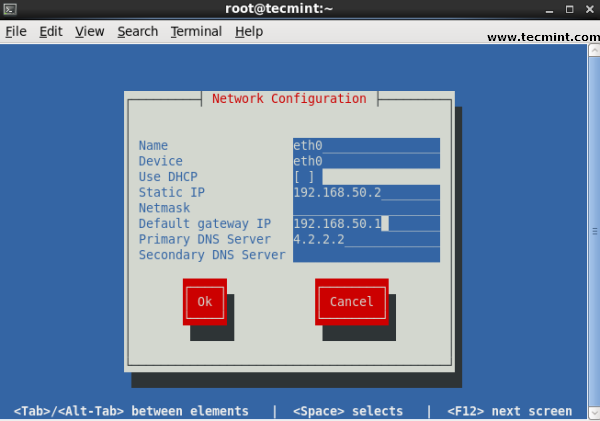
13. GUI tool system-config-network
Type system-config-network in command prompt to configure network setting and you will get nice Graphical User Interface (GUI) which may also use to configure IP Address, Gateway, DNS etc. as shown below image.
# system-config-network
Linux GUI Network Configuration Tool
 AhmedShimi