
Executing Linux Scripts During Reboot or Startup
There are two traditional methods to execute a command or run scripts during startup:
Method #1 – Use a cron Job
Besides the usual format (minute / hour / day of month / month / day of week) that is widely used to indicate a schedule, cron scheduler also allows the use of
@reboot. This directive, followed by the absolute path to the script, will cause it to run when the machine boots.However, there are two caveats to this approach:
- a) the cron daemon must be running (which is the case under normal circumstances), and
- b) the script or the crontab file must include the environment variables (if any) that will be needed (refer to this StackOverflow thread for more details).
Method #2 – Use /etc/rc.d/rc.local
This method is valid even for systemd-based distributions. In order for this method to work, you must grant execute permissions to
/etc/rc.d/rc.localas follows:# chmod +x /etc/rc.d/rc.localand add your script at the bottom of the file.
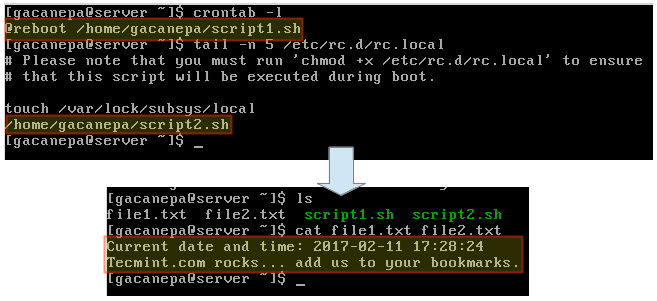
The following image shows how to run two sample scripts (
/home/gacanepa/script1.shand/home/gacanepa/script2.sh) using a cron job and rc.local, respectively, and their respective results.script1.sh:#!/bin/bash DATE=$(date +'%F %H:%M:%S') DIR=/home/gacanepa echo "Current date and time: $DATE" > $DIR/file1.txtscript2.sh:#!/bin/bash SITE="Tecmint.com" DIR=/home/gacanepa echo "$SITE rocks... add us to your bookmarks." > $DIR/file2.txt
Run Linux Scripts at Startup
Keep in mind that both scripts must be granted execute permissions previously:
$ chmod +x /home/gacanepa/script1.sh
$ chmod +x /home/gacanepa/script2.sh
Executing Linux Scripts at Logon and Logout
To execute a script at logon or logout, use
~.bash_profileand~.bash_logout, respectively. Most likely, you will need to create the latter file manually. Just drop a line invoking your script at the bottom of each file in the same fashion as before and you are ready to go.Source: How to Auto Execute Commands/Scripts During Reboot or Startup
 AhmedShimi