
This guide will show how to lock a system user’s account after a specifiable number of failed login attempts in CentOS, RHEL and Fedora distributions. Here, the focus is to enforce simple server security by locking a user’s account after consecutive number of unsuccessful authentications.
This can be achieved by using the
pam_faillockmodule which helps to temporary lock user accounts in case of multiple failed authentication attempts and keeps a record of this event. Failed login attempts are stored into per-user files in the tally directory which is/var/run/faillock/by default.pam_faillock is part of Linux PAM (Pluggable Authentication Modules), a dynamic mechanism for implementing authentication services in applications and various system services which we briefly explained under configuring PAM to audit user login shell activity.
How to Lock User Accounts After Consecutive Failed Authentications
You can configure the above functionality in the /etc/pam.d/system-auth and /etc/pam.d/password-auth files, by adding the entries below to the
authsection.auth required pam_faillock.so preauth silent audit deny=3 unlock_time=600 auth [default=die] pam_faillock.so authfail audit deny=3 unlock_time=600Where:
audit– enables user auditing.deny– used to define the number of attempts (3 in this case), after which the user account should be locked.unlock_time– sets the time (300 seconds = 5 minutes) for which the account should remain locked.Note that the order of these lines is very important, wrong configurations can cause all user accounts to be locked.
The
authsection in both files should have the content below arranged in this order:auth required pam_env.so auth required pam_faillock.so preauth silent audit deny=3 unlock_time=300 auth sufficient pam_unix.so nullok try_first_pass auth [default=die] pam_faillock.so authfail audit deny=3 unlock_time=300 auth requisite pam_succeed_if.so uid >= 1000 quiet_success auth required pam_deny.soNow open these two files with your choice of editor.
# vi /etc/pam.d/system-auth
# vi /etc/pam.d/password-auth
The default entries in
authsection both files looks like this.#%PAM-1.0 # This file is auto-generated. # User changes will be destroyed the next time authconfig is run. auth required pam_env.so auth sufficient pam_fprintd.so auth sufficient pam_unix.so nullok try_first_pass auth requisite pam_succeed_if.so uid >= 1000 quiet auth required pam_deny.soAfter adding the above settings, it should appear as follows.
#%PAM-1.0
# This file is auto-generated.
# User changes will be destroyed the next time authconfig is run.
auth        required      pam_env.so
auth        required      pam_faillock.so preauth silent audit deny=3 unlock_time=300
auth        sufficient    pam_fprintd.so
auth        sufficient    pam_unix.so nullok try_first_pass
auth        [default=die]  pam_faillock.so  authfail  audit  deny=3  unlock_time=300
auth        requisite     pam_succeed_if.so uid >= 1000 quiet
auth        required      pam_deny.so
Then add the following highlighted entry to the account section in both of the above files.
account     required      pam_unix.so
account     sufficient    pam_localuser.so
account     sufficient    pam_succeed_if.so uid < 500 quiet
account     required      pam_permit.so
account     required      pam_faillock.so
How to Lock Root Account After Failed Login Attempts
To lock the root account after failed authentication attempts, add the
even_deny_rootoption to the lines in both files in theauthsection like this.auth required pam_faillock.so preauth silent audit deny=3 even_deny_root unlock_time=300 auth [default=die] pam_faillock.so authfail audit deny=3 even_deny_root unlock_time=300Once you have configured everything. You can restart remote access services like sshd, for the above policy to take effect that is if users will employ ssh to connect to the server.
# systemctl restart sshd  [On SystemD]
# service sshd restart    [On SysVInit]
How to Test SSH User Failed Login Attempts
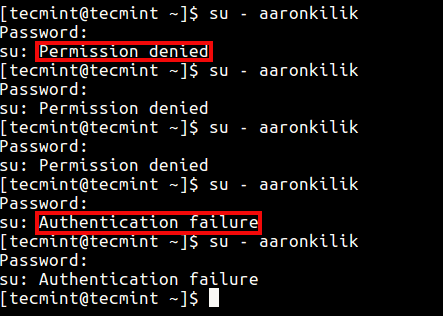
From the above settings, we configured the system to lock a user’s account after 3 failed authentication attempts.
In this scenario, the user
tecmintis trying to switch to useraaronkilik, but after 3 incorrect logins because of a wrong password, indicated by the “Permission denied” message, the user aaronkilik’s account is locked as shown by “authentication failure” message from the fourth attempt.
Test User Failed Login Attempts
The root user is also notified of the failed login attempts on the system, as shown in the screen shot below.

Failed Login Attempts Message
How to View Failed Authentication Attempts
You can see all failed authentication logs using the faillock utility, which is used to display and modify the authentication failure log.
You can view failed login attempts for a particular user like this.
# faillock --user aaronkilik
View User Failed Login Attempts
To view all unsuccessful login attempts, run faillock without any argument like so:
# faillockTo clear a user’s authentication failure logs, run this command.
# faillock --user aaronkilik --reset
OR
# fail --reset	#clears all authentication failure records
Lastly, to tell the system not to lock a user or user’s accounts after several unsuccessful login attempts, add the entry marked in red color, just above where pam_faillock is first called under the auth section in both files (/etc/pam.d/system-auth and /etc/pam.d/password-auth) as follows.
Simply add full colon separated usernames to the option user in.
auth  required      pam_env.so
auth   [success=1 default=ignore] pam_succeed_if.so user in tecmint:aaronkilik
auth   required      pam_faillock.so preauth silent audit deny=3 unlock_time=600
auth   sufficient    pam_unix.so  nullok  try_first_pass
auth   [default=die]  pam_faillock.so  authfail  audit  deny=3  unlock_time=600
auth   requisite     pam_succeed_if.so uid >= 1000 quiet_success
auth   required      pam_deny.so
For more information, see the pam_faillock and faillock man pages.
# man pam_faillock
# man faillock


Source: How to Lock User Accounts After Failed Login Attempts
 AhmedShimi